Overview
Vast requires pre-payment of credits for GPU rentals. Once credits are purchased, they appear in your account balance. We accept credit card payments through Stripe and crypto payments through BitPay and Crypto.com. Use the add credit button to purchase credits one-time. Use the autobilling feature to have the system automatically top up your account using a saved credit card when it runs low.Negative Balances
Once your credits reach $0.00, your instances, storage volumes, and data will be scheduled for deletion unless you add credits to make your balance positive again. When your balance reaches zero (or below):- Your instances are stopped automatically.
- While an instance is stopped, your instance is detached from its GPU(s), but your data can still be copied off the machine.
- As with any stopped instance, you will continue to be billed for disk storage — even if your balance is negative.
- To protect accounts with established usage history, the system allows a short grace period where your balance may go negative before deletion occurs — the length of this buffer is calculated based on your account’s average daily spend. Accounts with higher historical spend receive a proportionally larger buffer.
- If you have a credit card saved:
- Your credit card will be periodically and automatically charged to cover any negative balance.
- This protects your instances from being deleted and allows you to resume them without losing data.
- If you do not have a credit card saved:
- The system will have no backup payment method to charge, and will not be able to top up your balance.
- Your instances and stored data will be destroyed to prevent indefinite unpaid usage.
Autobilling (credit card only)
Autobilling keeps your balance positive to protect your instances from interruption or deletion.We recommend:
- Set your autobilling threshold to approximately your average daily or weekly spend
- Set a low balance email notification at around 75% of that threshold — this gives you an early warning if autobilling fails before your balance depletes to zero
Update Frequency
Balances are updated about once every few seconds.Credit Card Security
Vast.ai does not see, store or process your credit card numbers, they are passed directly to Stripe (which you can verify in the javascript).Refunds
After spending credits, there are absolutely no refunds. For unspent credits, contact us on the website chat to request a refund. In most cases we can refund unspent credits. Unfortunately Coinbase Commerce does not support refunds, so there are no refunds possible for credits purchased via Coinbase Commerce (legacy).Pricing
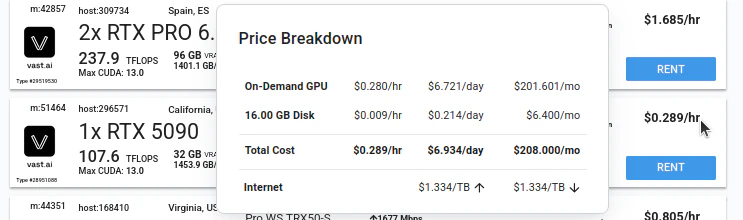
There are separate prices and charges for:- Active rental (GPU) (in $/hr)
- Storage costs (in $/GB/hr)
- Bandwidth costs (in $/TB)
Payment Methods
We currently support major credit cards through stripe, and crypto payments through BitPay and Crypto.com.Billing Page Walkthrough
In this section we will walk through your billing page, which you can access from the Account section of your sidebar while logged into your Vast account.Credits Panel
Here you can see the current amount of Vast credits you have. This section also shows what you are currently spending on instances and storage volumes.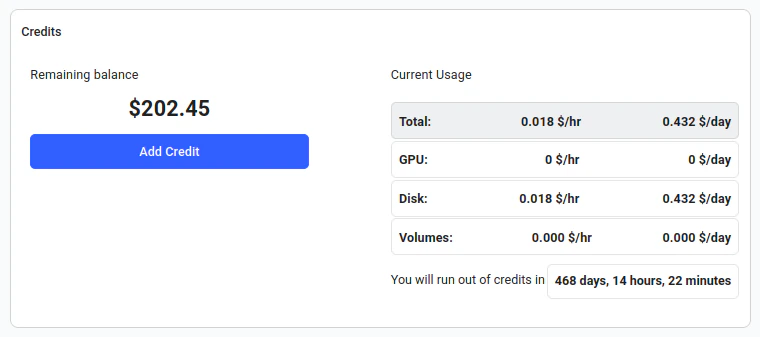
Adding Credits
By clicking the Add Credits button in the credits panel, you can add payment methods, link accounts, and add credits to your Vast account.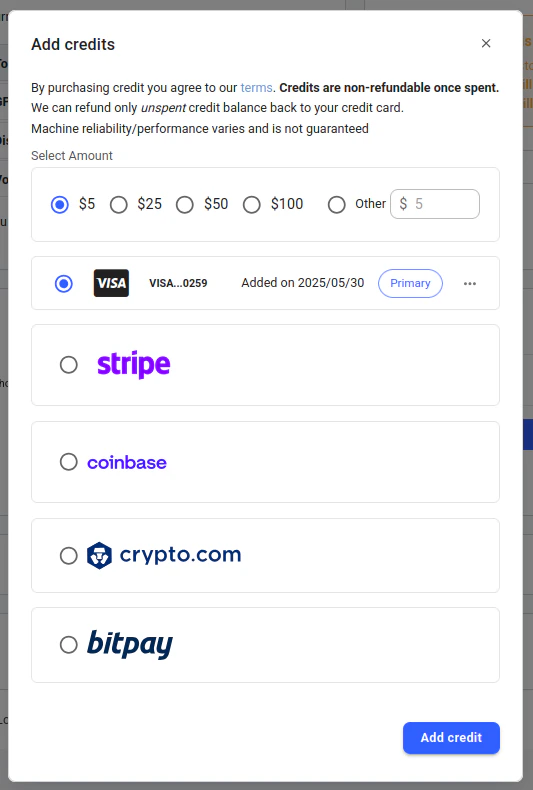
Transfer Credits
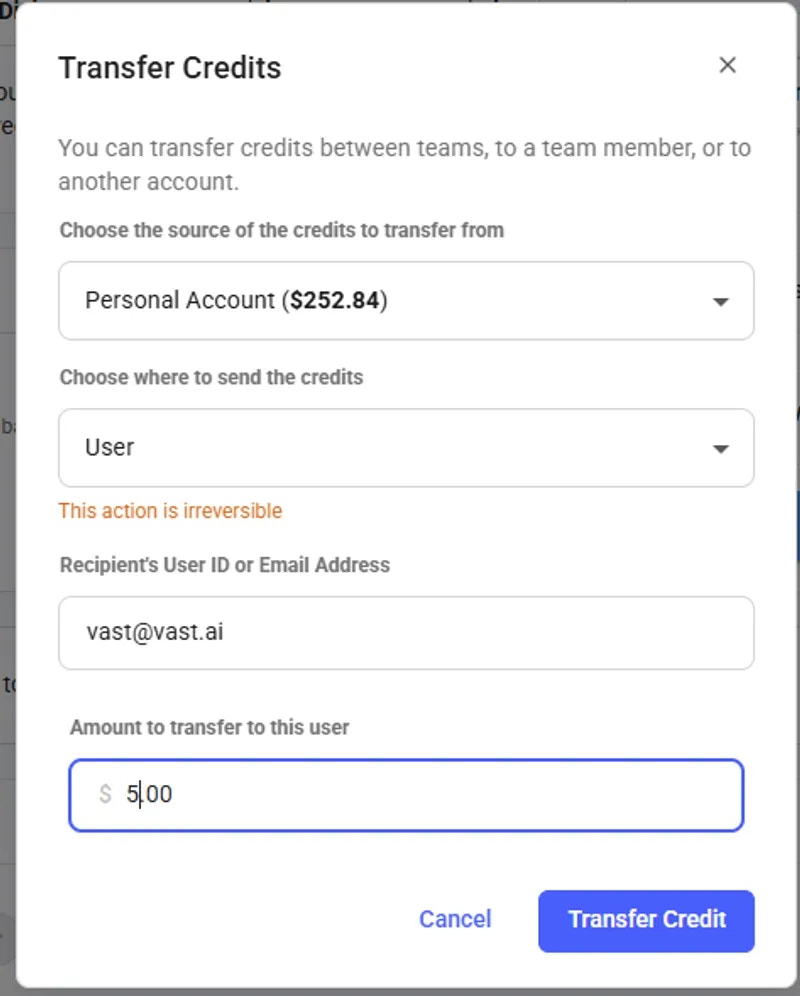
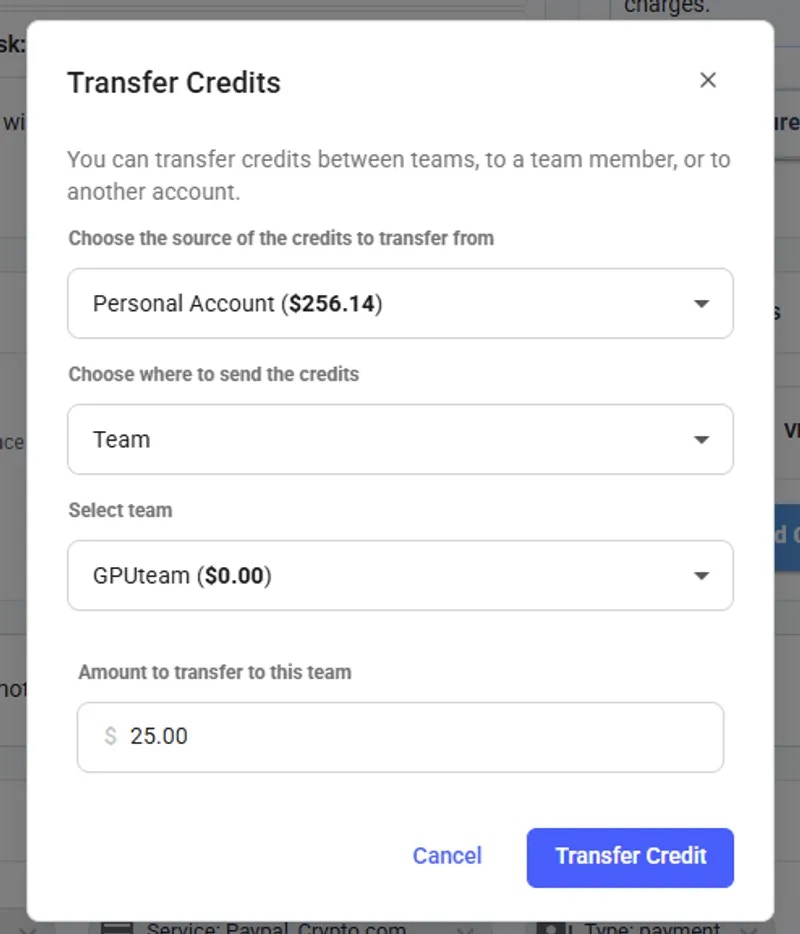
From this section, you can transfer your personal credits to a different account or team.
- To transfer credit to another user, you will need their email address. ⚠️ This action is irreversible, so please double-check the email before proceeding.
- to transfer credit to a team, you should be a part of the team.
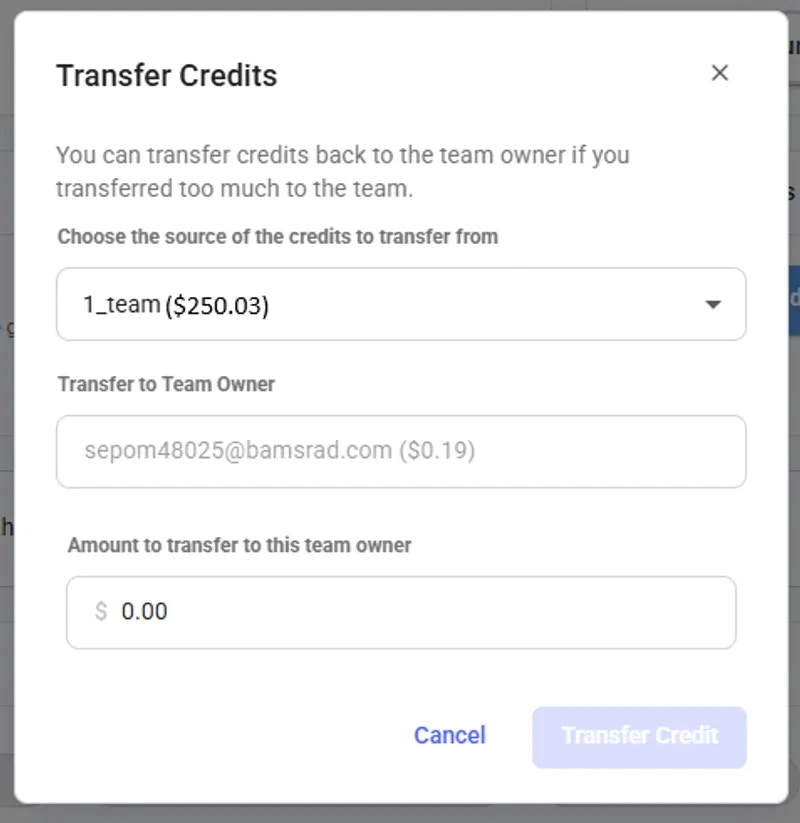
- To transfer credit from a team back to a personal account, you must be the team owner. You will need to switch to your team context and open Billing Page form there to see following pop-up.
Transaction History Table
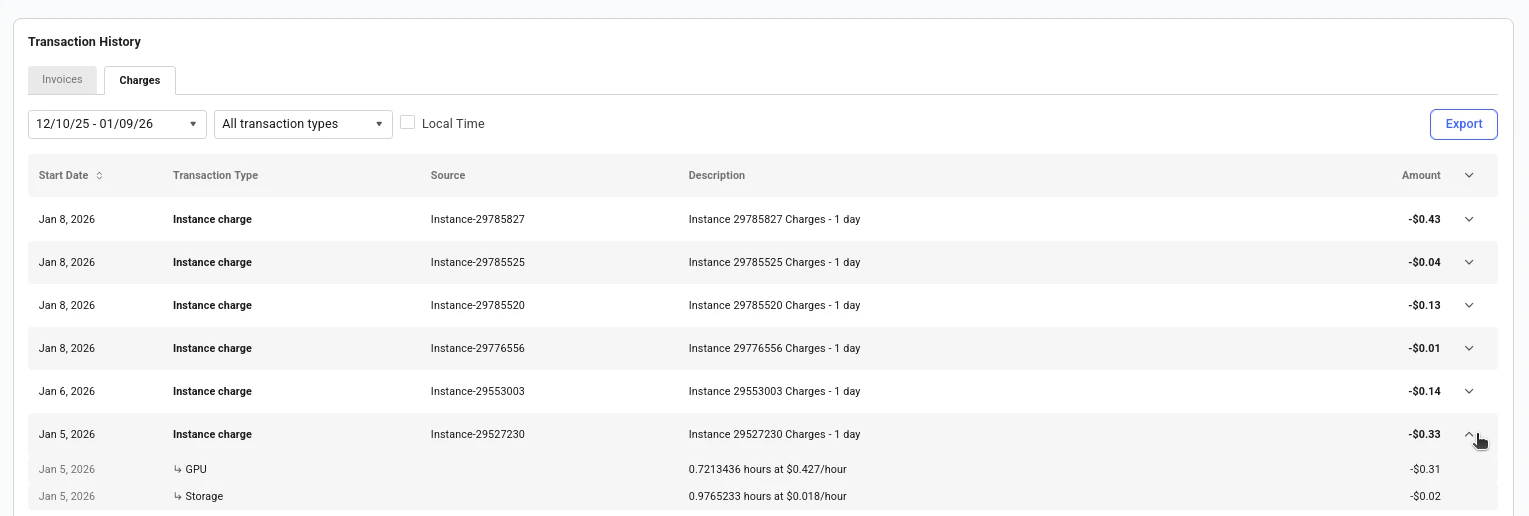
At the bottom of your billing page, you will find an itemized table of your transactions on Vast. By default, the table is open to the Invoices tab, where you can see all manual and automatic billing records, as well as transfers and refunds.
Invoice Information
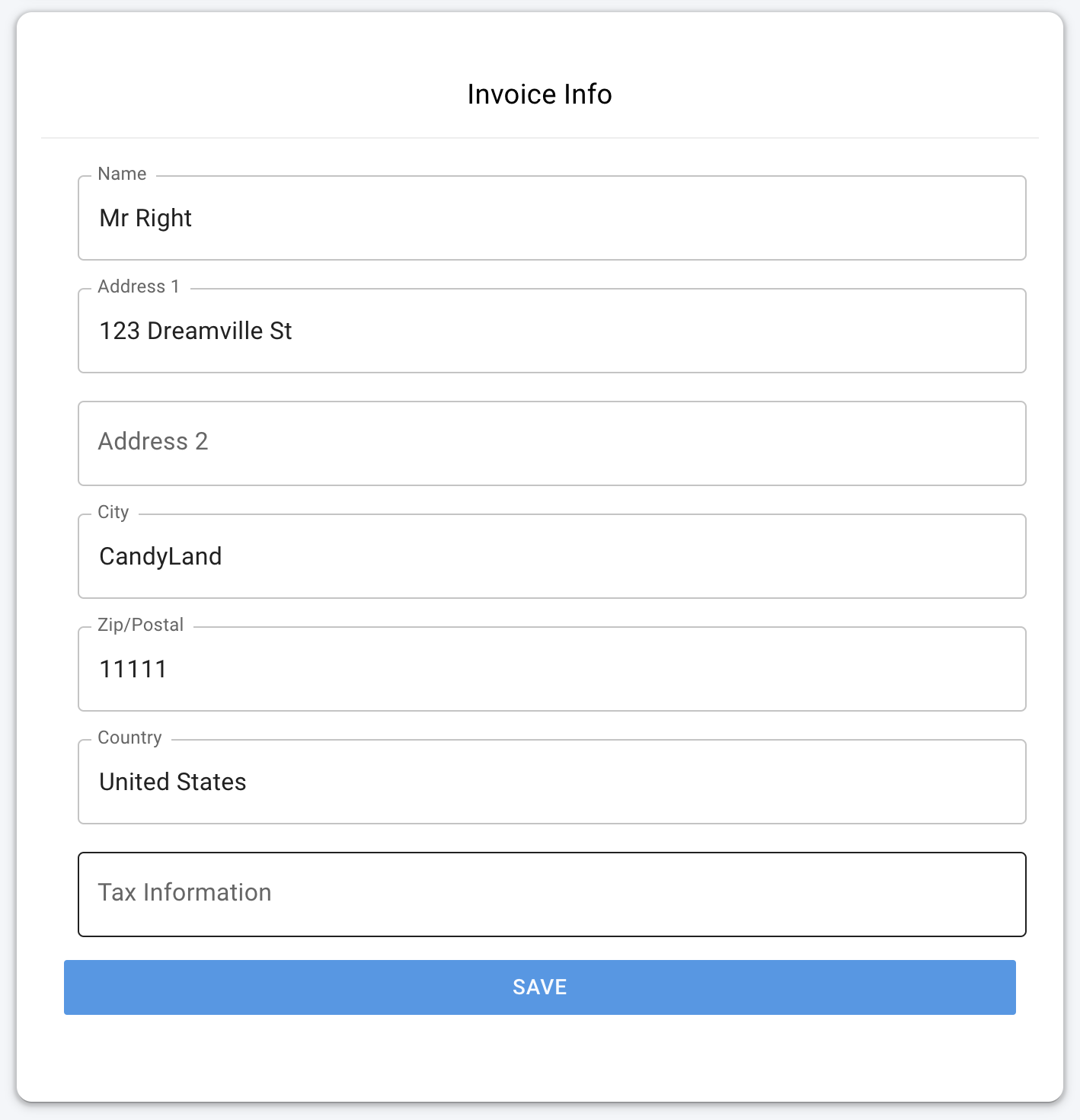
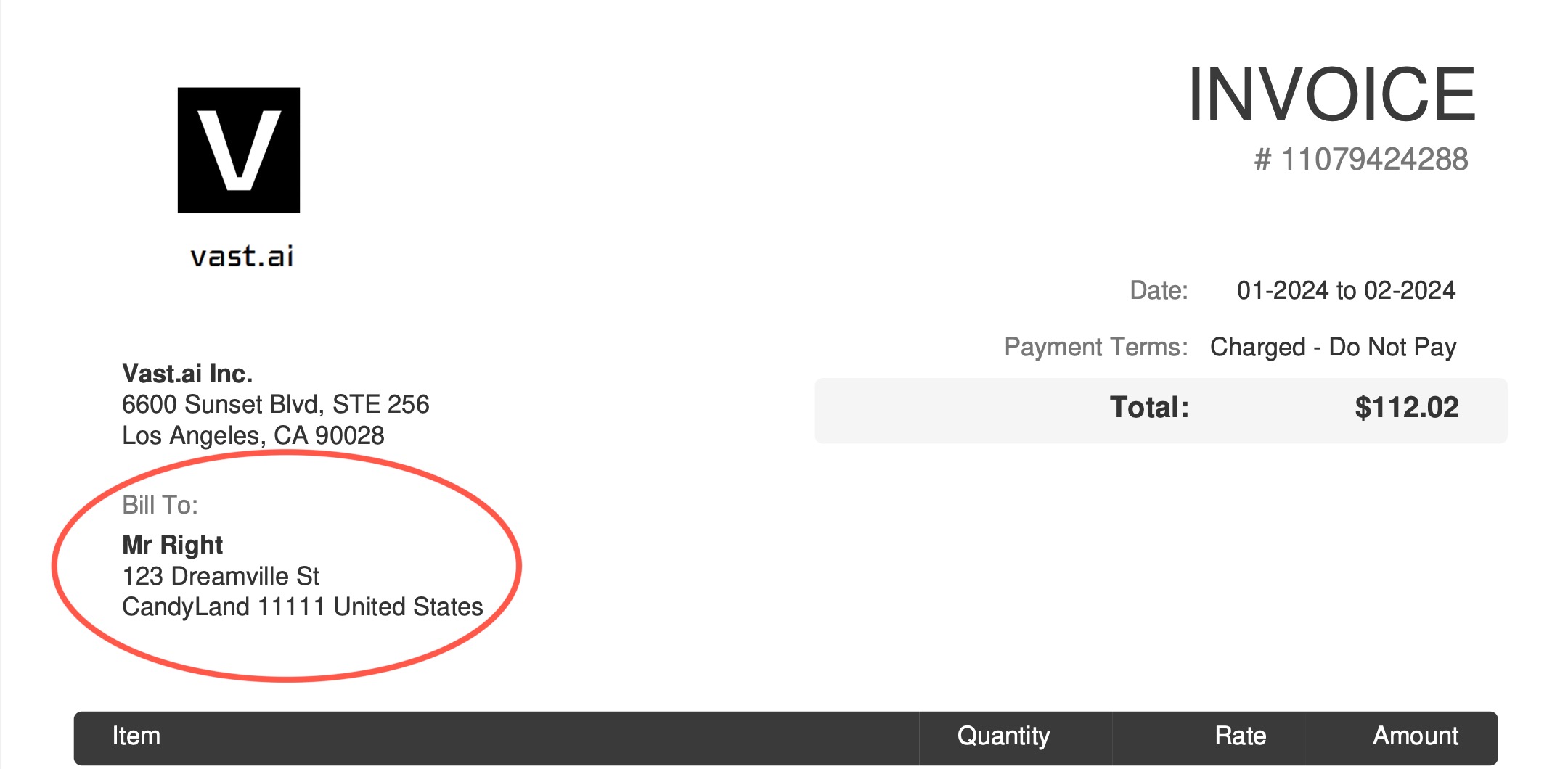
To customize your business or personal details on your Vast invoices, you can go to your Account Settings where you will find a section “Invoice Information.”There you can add the your details to be shown on invoices you generate.